Achieving stunning drone aerial footage goes beyond just smooth flying and compelling compositions; it demands meticulous attention to color. Inconsistent white balance can quickly undermine the professionalism of your videos, leading to jarring color shifts between clips and an overall amateurish look. Imagine a beautiful blue sky suddenly turning green or a crisp white building appearing yellow. This guide will walk you through the essential steps to master white balance, ensuring your drone footage boasts consistent, natural-looking colors from start to finish.
Understanding White Balance: The Foundation of Accurate Color
At its core, white balance (WB) is your camera’s way of accurately interpreting colors by neutralizing color casts caused by different light sources. The goal is to ensure that objects that are truly white in real life appear white in your footage, without any unwanted blue, orange, or green tints. This is achieved by adjusting the camera’s color temperature settings, measured in Kelvin (K).
What is White Balance? The Kelvin Scale Explained
The Kelvin scale is crucial for understanding color temperature. Lower Kelvin values (e.g., 2000K-4000K) represent warmer light, which tends to have an orange or yellow tint. Conversely, higher Kelvin values (e.g., 6000K-10000K) indicate cooler light, which appears bluer. By selecting the appropriate Kelvin setting, you tell your drone’s camera to add the opposing color to balance out the scene, resulting in natural hues.
Why Automatic White Balance Fails for Video
While convenient, Automatic White Balance (AWB) is generally unsuitable for professional drone videography. AWB constantly analyzes the scene and adjusts the color temperature, meaning that as your drone flies over different landscapes or lighting conditions, the color balance can subtly (or dramatically) shift within a single shot or across a sequence of clips. For example, flying from a green forest to a brown field might cause the camera to overcompensate, leading to noticeable color changes. This inconsistency makes color grading in post-production significantly more challenging and time-consuming, as you’d have to correct individual clips or even frame-by-frame.
Pre-Flight Preparation: Setting the Stage for Success
The journey to consistent white balance begins before your drone even leaves the ground. Proper pre-flight setup is paramount for achieving professional results.
Manual White Balance: Taking Control
For video, manually setting your white balance is highly recommended to guarantee consistent color throughout your shoot. This locks the color temperature, preventing unwanted shifts. Here are some common Kelvin values as a starting point:
- Daylight / Sunny: 5500K – 6500K (often around 5600K)
- Cloudy: 6500K – 7000K
- Shady: 7500K
- Sunrise / Sunset (Golden Hour): Much warmer, typically 2000K – 4500K for rich orange and red tones
You can estimate these values, or for greater precision, use the “trick” of switching to AWB briefly while pointing at a neutral scene, then switching back to manual. This will often set the manual Kelvin value to what the camera initially thinks is correct, providing a good starting point.
The White Balance Card Advantage
For the most accurate in-camera white balance, a white balance card or an 18% gray card is an invaluable tool.
- In-Camera Calibration: Before launching, hold the white balance card in front of your drone’s camera, ensuring it fills the frame under the same lighting conditions you intend to shoot in. Manually adjust the Kelvin slider in your drone’s camera settings until the card appears perfectly neutral (white or gray, with no color cast) on your monitor. Lock this setting for your flight.
- Post-Production Reference: Even if you plan to correct white balance in post, taking a reference photo or video clip of the white balance card under the scene’s primary lighting is highly beneficial. This gives you an objective reference point to match all your footage to later.
Optimize Other Camera Settings
Beyond white balance, consider these settings for optimal color grading flexibility:
- Flat Color Profiles: Shoot in a flat color profile like D-Log or D-Cinelike (common on DJI drones). These profiles capture more dynamic range in shadows and highlights, giving you greater latitude for color correction and grading in post-production.
- ISO: Keep your ISO as low as possible (e.g., ISO 100-200) to minimize digital noise, especially when using flat profiles.
- Exposure: Correctly expose your footage in-camera. While color correction can fix minor issues, it’s not a magic wand for poorly exposed shots. Use your drone’s histogram and zebras to avoid clipping highlights or crushing shadows.
- RAW vs. JPEG for Photos: For drone photography, shooting in RAW provides the most flexibility for white balance adjustments in post-production without quality loss, as white balance isn’t “baked in”.
In-Flight Techniques: Maintaining Consistency in Dynamic Environments
Even with careful pre-flight preparation, conditions can change. Being adaptable during flight is key.
Monitoring and Adapting
Constantly monitor your environment and drone’s feed. If lighting conditions shift significantly (e.g., clouds roll in, you move from direct sun to shade), you might need to land and recalibrate your manual white balance or quickly adjust the Kelvin setting if your drone’s app allows it mid-flight. The goal is to prevent noticeable color shifts that disrupt the visual flow of your video.
Avoiding Rapid Shifts
Plan your flight paths to minimize drastic changes in lighting within a single shot. Smooth transitions between different light environments help maintain color consistency. If a significant change is unavoidable, consider making a cut rather than having an abrupt color shift in the middle of a continuous shot.
Post-Production Workflow: Refining Your Footage
Even with the best in-camera settings, post-production is where your footage truly shines.
The Importance of In-Camera Accuracy for Video
For compressed video formats (like H.264 or H.265 common in consumer drones), making extreme white balance changes in post-production can lead to degradation of footage quality and introduce artifacts. This is why getting the white balance as close to correct as possible in-camera is crucial for video.
White Balance Correction in Editing Software
If you shot in RAW for photos or need to fine-tune video, modern editing software like Adobe Premiere Pro, DaVinci Resolve, or Lightroom offers powerful tools.
- Eyedropper Tool: Use the eyedropper tool to click on a neutral gray or white area in your footage (preferably from your white balance card reference shot) to automatically correct the white balance.
- Temperature and Tint Sliders: Manually adjust the “Temp” (Kelvin) and “Tint” sliders to achieve the desired look. Tint correction is particularly difficult for the human eye to judge, making a reference point invaluable.
- Batch Application: Once you’ve perfected the white balance for one clip or photo shot under consistent conditions, you can often copy and paste those exact settings to all other clips from that same lighting scenario, ensuring uniformity.
Leveraging Flat Profiles for Color Grading
When working with flat color profiles, the first step in post-production is usually to apply a conversion LUT (Look-Up Table) provided by the drone manufacturer (e.g., DJI’s official conversion LUTs for D-Log to Rec.709). This brings back initial contrast and saturation, giving you a neutral starting point before you begin creative color grading.
Advanced Tips for Professional Results
To truly elevate your drone aerial footage, consider these advanced practices.
Consistent Lighting and Time of Day
Plan your shoots during consistent lighting conditions. Early morning and late afternoon (the “golden hours”) offer softer, warmer lighting that is often easier to work with and provides more natural contrast. Avoid the harsh midday sun, which can create strong, unflattering shadows and blown-out highlights.
Calibrated Monitors
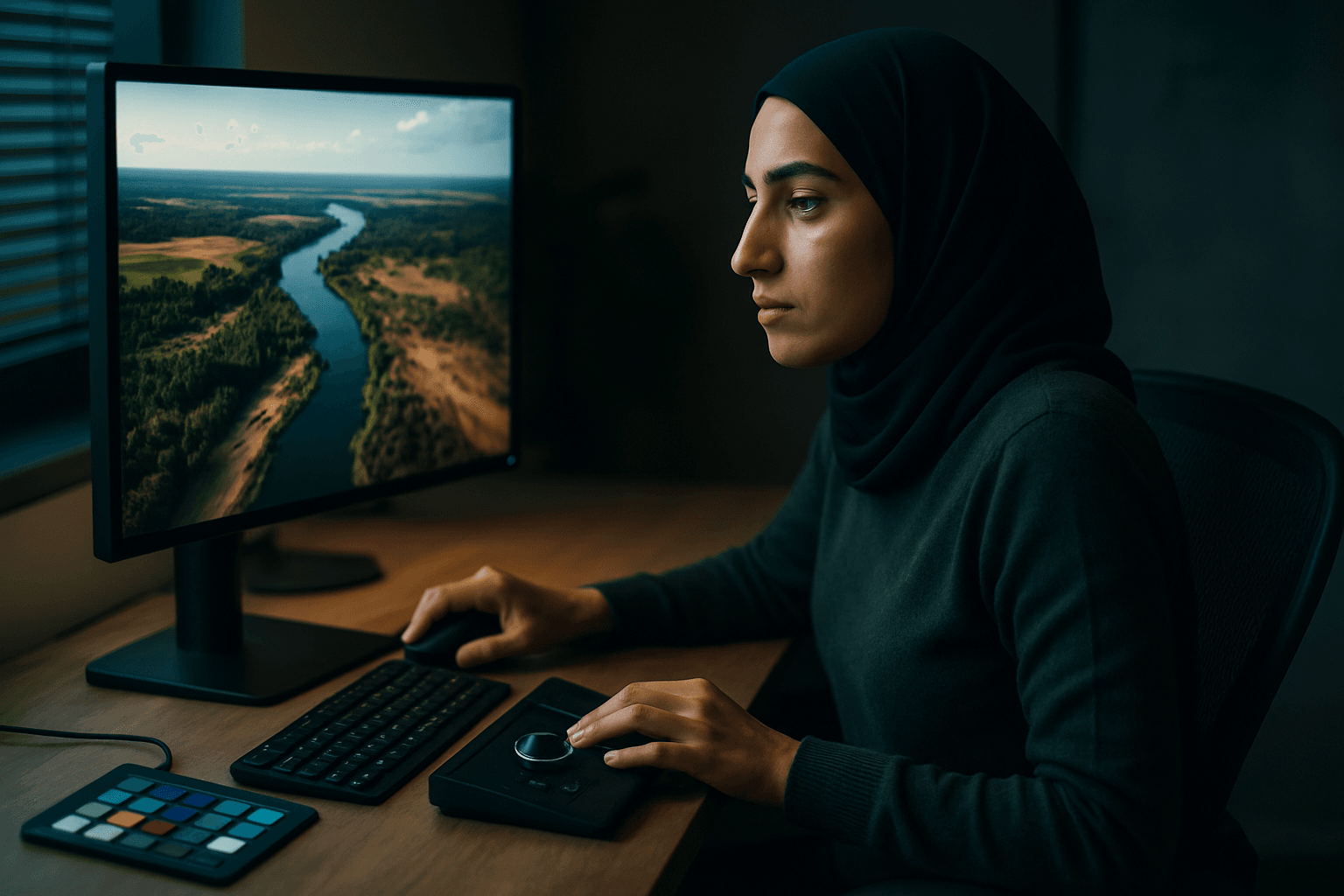
A properly calibrated monitor is essential for accurate color work. What looks good on an uncalibrated screen might appear entirely different elsewhere. Using tools like a colorimeter (e.g., Spider X) or monitor calibration software ensures you’re seeing true colors.
Batch Applying Settings
Whenever possible, especially if you’ve shot multiple clips or photos under the same exact lighting conditions and with the same manual white balance, leverage batch editing capabilities in your software. This allows you to apply the same color corrections across all relevant footage, saving immense time and guaranteeing consistency.
By understanding the principles of white balance, diligently preparing before flight, adapting to conditions in the air, and refining your footage in post-production, you can achieve consistently beautiful, professional-grade drone aerial footage that truly stands out.